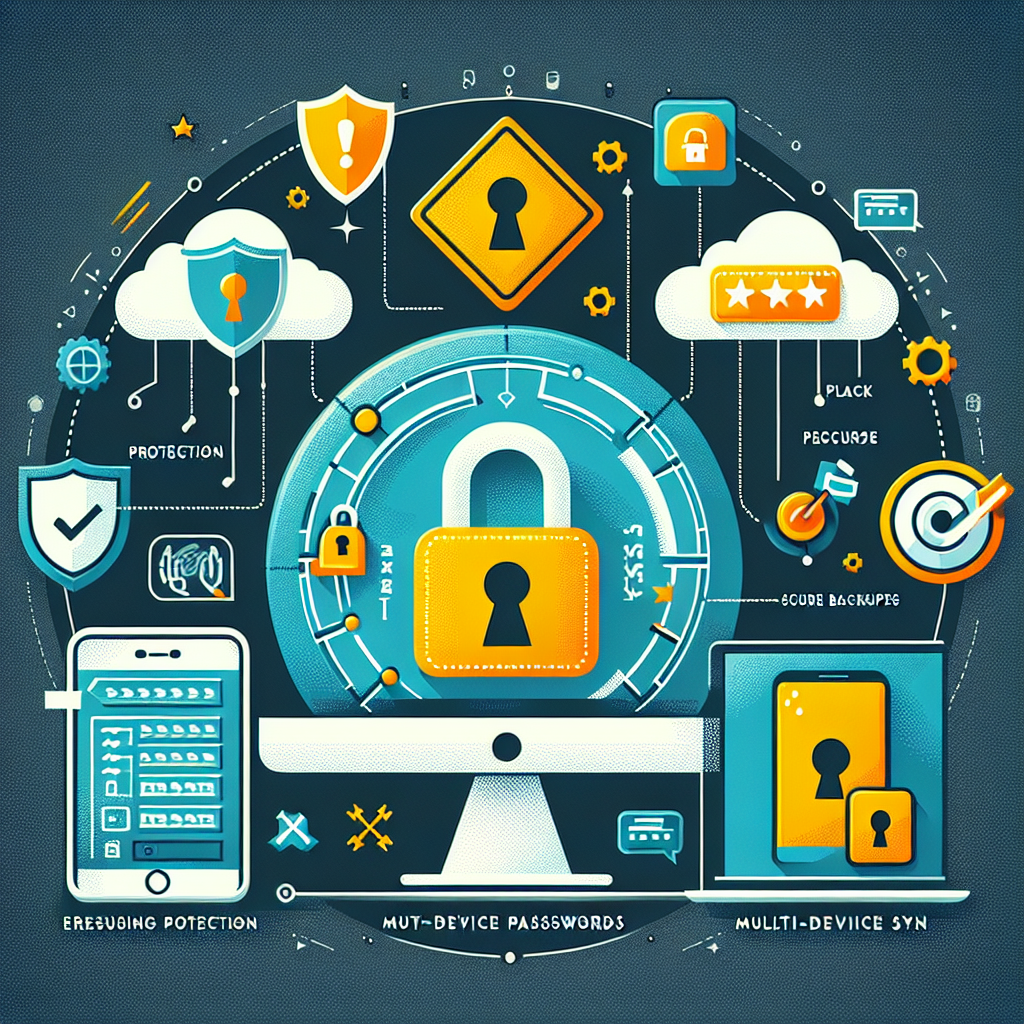
Protect Your Passwords: How to Use a Free Password Manager and Avoid Getting Hacked
Have You Reused the Same Password Across Multiple Accounts?
Cybersecurity threats are at an all-time high, with hackers leveraging data breaches to exploit weak or reused passwords. Millions of users fall victim annually, often due to simple mistakes like keeping one password across platforms. Are you at risk?
If you’re concerned about the security of your online accounts, there’s a simple yet powerful tool you may not be using: a password manager. With free and easy-to-use options available, now’s the time to secure your credentials.
What is a Password Manager and Why Should You Use One?
A password manager is a digital tool that securely stores, organizes, and manages your passwords. Instead of remembering numerous complex passwords, you only need to remember one master password. The manager takes care of everything else, including generating secure, unique passwords for each account.
- Convenience: Access all your passwords with just one master key.
- Security: Encrypts sensitive data to prevent unauthorized access.
- Syncing: Use your passwords across devices without compromising safety.
By using a password manager, you significantly reduce the risk of falling victim to common cyber-attacks like credential stuffing and phishing.
Top Free Password Managers to Consider
Not all password managers require a subscription or fee. Some excellent free options include:
1. Bitwarden
Bitwarden is one of the best free password managers available. It offers robust security features, including end-to-end encryption, cross-platform syncing, and open-source transparency.
2. KeePass
KeePass is a free, local password manager that stores your data offline, reducing exposure to remote attacks. It’s ideal for those who prefer manual control of their passwords.
3. Proton Pass
Proton Pass by ProtonMail focuses on privacy and security, making it an excellent choice for privacy-conscious users. It integrates seamlessly with ProtonMail’s ecosystem and ensures top-notch encryption.
Setting Up a Password Manager on Your Devices
Here’s how you can get started with a password manager and sync it across your devices:
- Download the Password Manager: Visit the chosen software’s official website to download the desktop and mobile app.
- Install the Application: Complete installation and follow the on-screen instructions to set up your account.
- Create a Master Password: Choose a strong, unique master password that is easy to remember but hard to crack. Consider using a passphrase.
- Import or Enter Passwords: Add existing passwords manually or use an import tool if available.
- Sync Across Devices: Enable syncing so you can access your passwords securely from your phone, tablet, or PC.
Need help syncing? Check the support pages on Bitwarden, KeePass, or Proton Pass for detailed instructions.
Best Practices for Maximizing Password Security
Using a password manager is only the first step toward online safety. Follow these additional practices:
- Enable Two-Factor Authentication (2FA): Add an extra layer of security by linking your accounts to a 2FA app like Google Authenticator or Authy.
- Create Unique Passwords: Never reuse passwords across multiple accounts. Your password manager can generate random, secure passwords for each login.
- Backup Your Vault: Keep a secure, encrypted backup of your password vault to avoid losing access in case of technical issues.
- Update Passwords Regularly: Periodically change passwords for especially sensitive accounts like banking or email.
Stay Safe Online With the Right Tools
Cybersecurity doesn’t have to be intimidating or expensive. By using a free password manager and following best practices, you can safeguard your data with minimal effort.
Start today by exploring options like Bitwarden, KeePass, or Proton Pass. Set up your password manager, enable 2FA, and take control of your online security now.
No responses yet