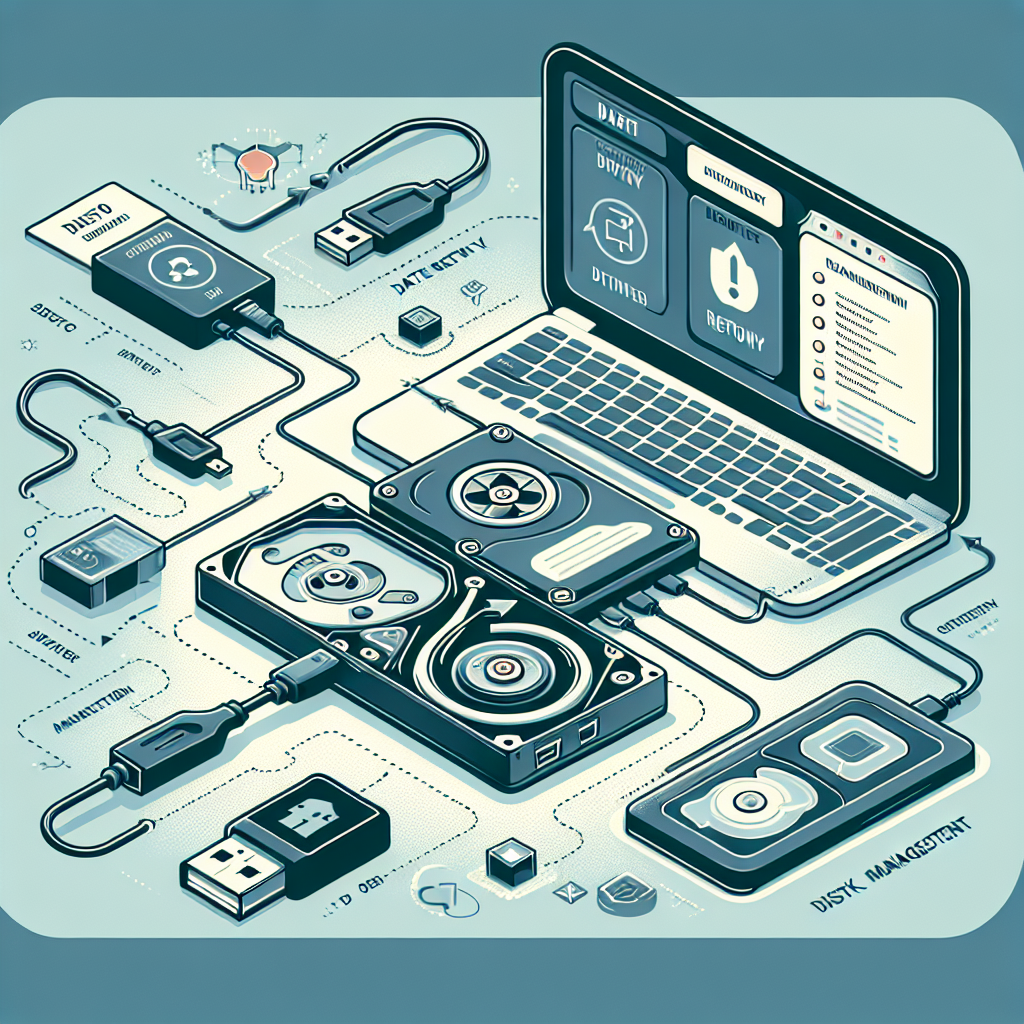
What to Do When Your External Hard Drive or USB Doesn’t Show Up: 5-Step Fix
Imagine this: You plug in your trusty external hard drive or USB into your computer, ready to retrieve an important file, only to find… nothing. Your device doesn’t recognize it, and now panic sets in. Is all your data lost forever? What caused it? More importantly, how can you fix it?
Don’t worry. If your external hard drive or USB isn’t showing up, this guide provides a quick, practical 5-step solution to get your device back on track. Read on to understand the possible causes and simple fixes you can apply today.
Step 1: Check the Port and Cable
Before jumping to conclusions, start with the basics. Inspect whether the USB port or cable is working properly. Hardware connection issues are one of the most common reasons external drives fail to show up.
- Try plugging the USB or external hard drive into another port on your computer.
- Use a different cable to rule out damage to the original one.
- Test the device on another computer to confirm whether the issue lies with the hard drive or your primary machine.
If the drive works in a different setting, the problem is more likely related to your port or cable. However, if it’s still invisible, move to Step 2.
Step 2: Check “Disk Management” and “Device Manager”
It’s possible that your operating system recognizes the device, but hasn’t mounted it or assigned it a drive letter. To verify:
Access Disk Management
- On Windows, right-click the Start button and select Disk Management.
- Look for your device in the list. If it shows up as “Unallocated” or without a file system, it’s detected but needs formatting or a drive letter.
Use Device Manager
- Open the Device Manager by searching for it in the Start menu.
- Expand the “Disk Drives” or “Universal Serial Bus Controllers” sections to check if your device is listed.
- If you see a yellow exclamation mark next to your device, it likely indicates a driver issue (which we’ll address in Step 3).
Step 3: Assign a Drive Letter or Update Drivers
External drives that lack a drive letter or have outdated drivers won’t show up properly. Here’s how to fix it:
Assign a Drive Letter
- In Disk Management, right-click on your drive and select Change Drive Letter and Paths….
- Click Add or Change, then select a new drive letter.
- Click OK to assign the letter. Your device should now appear in File Explorer.
Update Device Drivers
- In Device Manager, right-click on the external drive or USB listed under “Disk Drives.”
- Select Update Driver, then select Search Automatically for Updated Driver Software.
- Once the driver is updated, reconnect your device.
Still no luck? Proceed to Step 4 for more advanced solutions.
Step 4: Consider Data Recovery Options
If your hard drive or USB isn’t detected even after trying the solutions above, it may have serious issues like file corruption or hardware failure. In such cases, data recovery tools can be a lifesaver.
- EaseUS Data Recovery Wizard, Recuva, and MiniTool Partition Wizard are popular tools to retrieve your files.
- If the drive is physically damaged, consult a professional data recovery service for assistance.
Be sure to back up any recovered data to a different storage system to avoid further risks.
Step 5: Prevention Tips for the Future
Prevention is always better than cure. Here are some tips to reduce the risk of your external drives encountering similar problems:
- Always use the “Safe Remove” feature before unplugging your device to prevent corruption.
- Regularly update your drivers to ensure compatibility with the latest systems.
- Format your drives using reliable file systems (e.g., NTFS or exFAT for Windows).
- Store your hardware in safe, dry conditions to avoid physical damage.
Following these practices can help you avoid the common frustrations of undetected external devices.
Conclusion
External hard drives and USB devices not showing up is a frustrating but fixable problem. By following this 5-step guide—checking ports, using Disk Management, updating drivers, exploring data recovery, and applying preventative care—you can often resolve the issue quickly and get back to your work.
If you’re still encountering issues after trying these solutions, don’t hesitate to consult a professional. Your data is valuable, and ensuring it is properly handled can save you headaches in the long run.
Want to learn more about protecting and optimizing your storage devices? Check out our in-depth tutorials and guides.
No responses yet